Summary
The PDS Project backup application is used for:
- Creating archived copies from Project for the Web environments (default and named), and related tables (Tasks, Changes, Risks, etc.) in the Project for the Web Model-Driven Power Apps Solution (Custom or Accelerator) solution via connecting to the solution.
- Recovery of erroneously deleted or damaged projects and related data from the saved archive.
Note: Accelerator is optional, it could work without it or with a custom solution
Authorization On The PDS Website
To get and use active applications, you need to follow the link Home - Project Data Suite (projectdata.io) (https://app.pdms.io/) and click on either «Login» or «Sign up», depending on whether you have an account already created or not.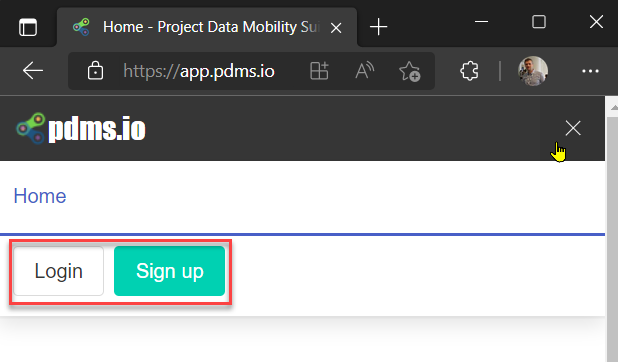
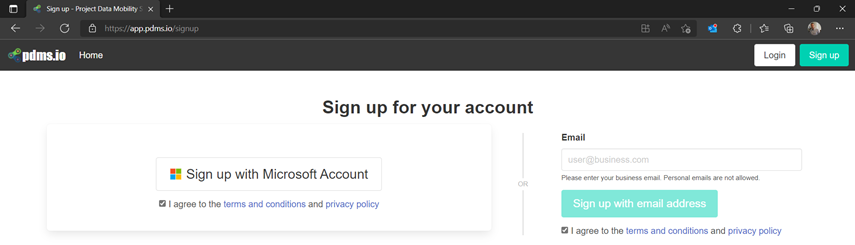
If you do not have access, you need to click the "Sign up" button and select which account you want to access. 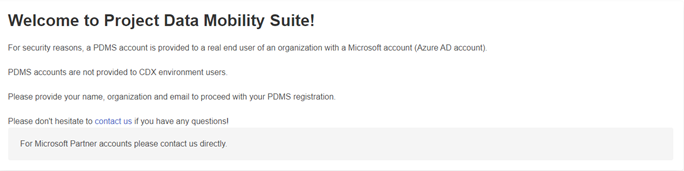
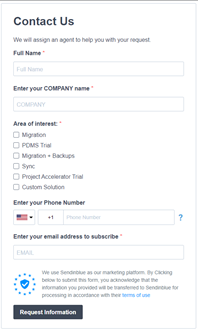
After access is requested, you will receive an email granting access.
If you already have access, you should click the "Login" button and then click in the new window "Login with Microsoft Account" and log in using the account that was granted access.
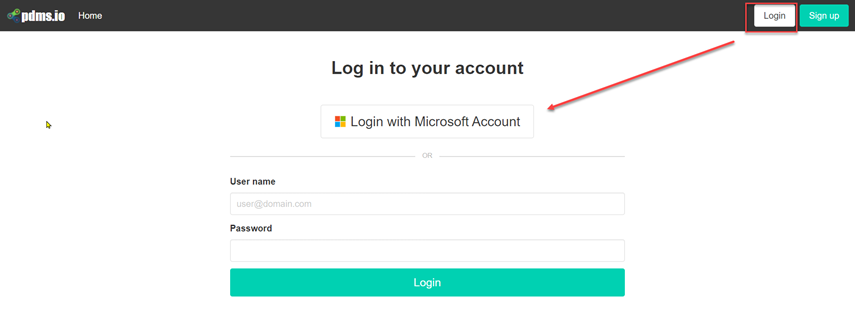
Authorization and connection to Project for the Web
After successful login, you get to the start page of the site, where you need to go to the BACKUP tab.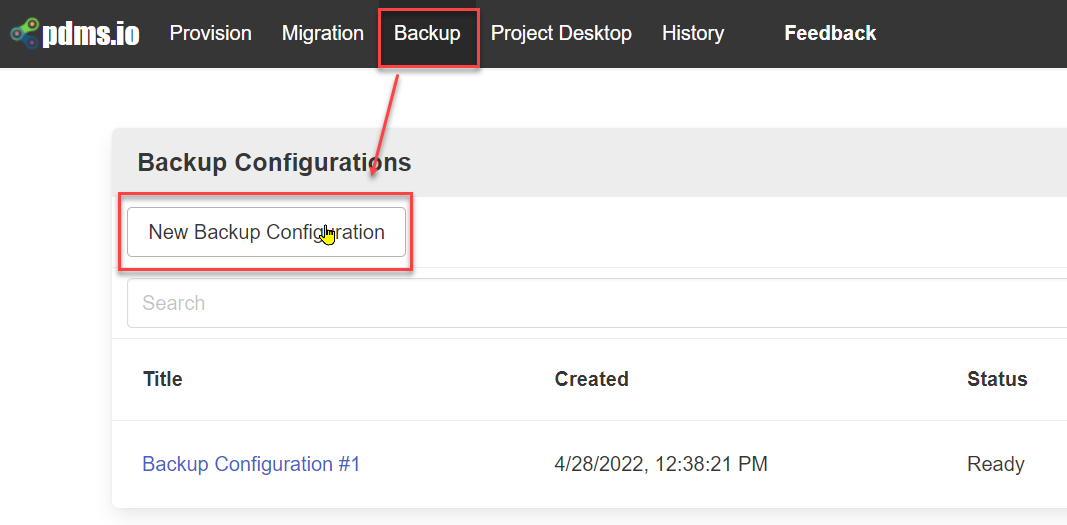
If this is your first-time backup configuring, you will need to create your first connection to the Project for the Web environment. To do this, you must click the " New Backup Configuration " button.
The authentication method is selected depending on which method is selected in your company and after that, you need to click the "Login" button.
For example, if you have disabled two-factor authentication, you can select the "Login & Password" option and enter the login and password for accessing the environment with Project for the Web.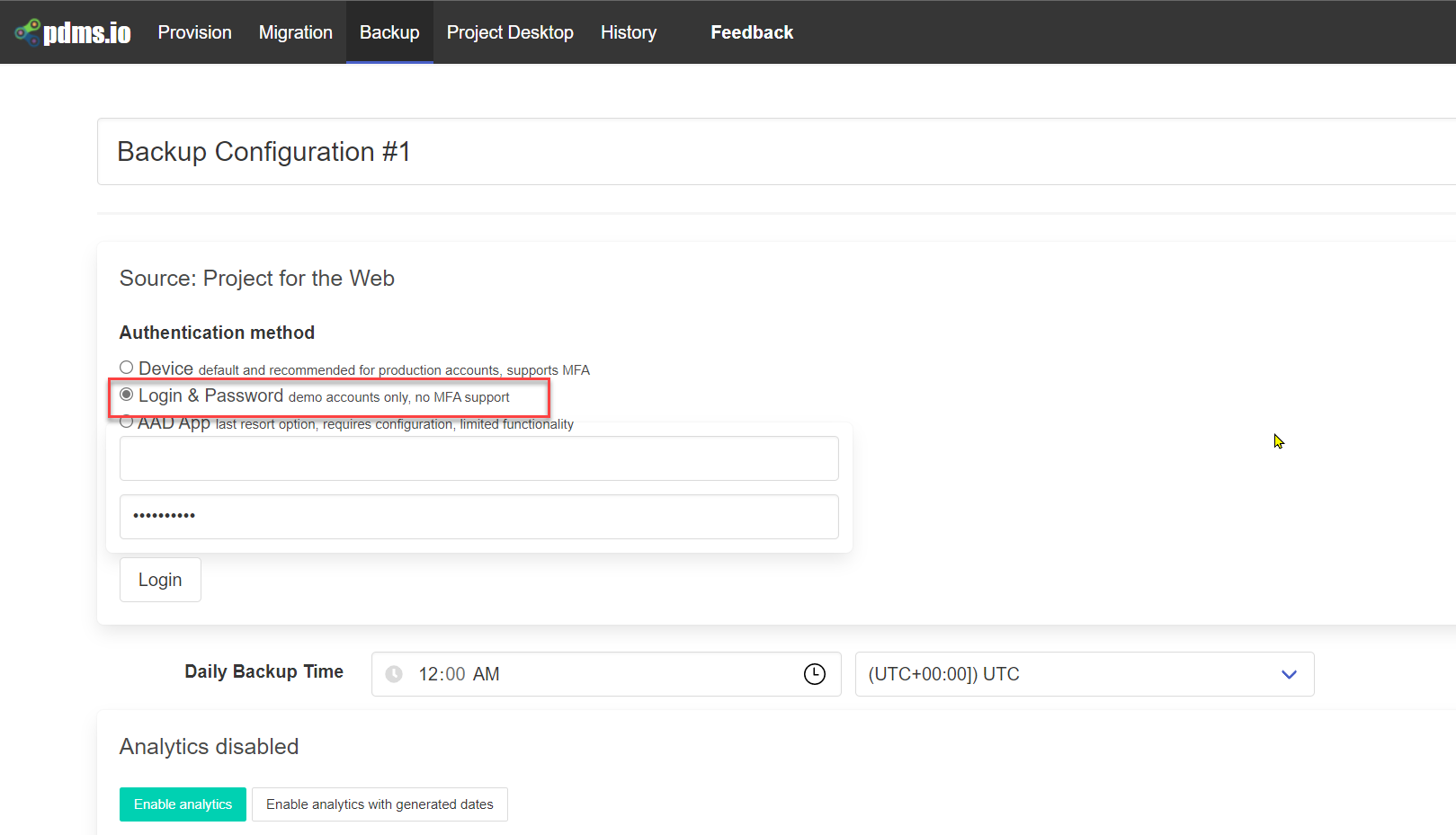
As soon as a successful authorization process takes place, you will automatically be redirected to the settings page, where you will be able to select the environment.
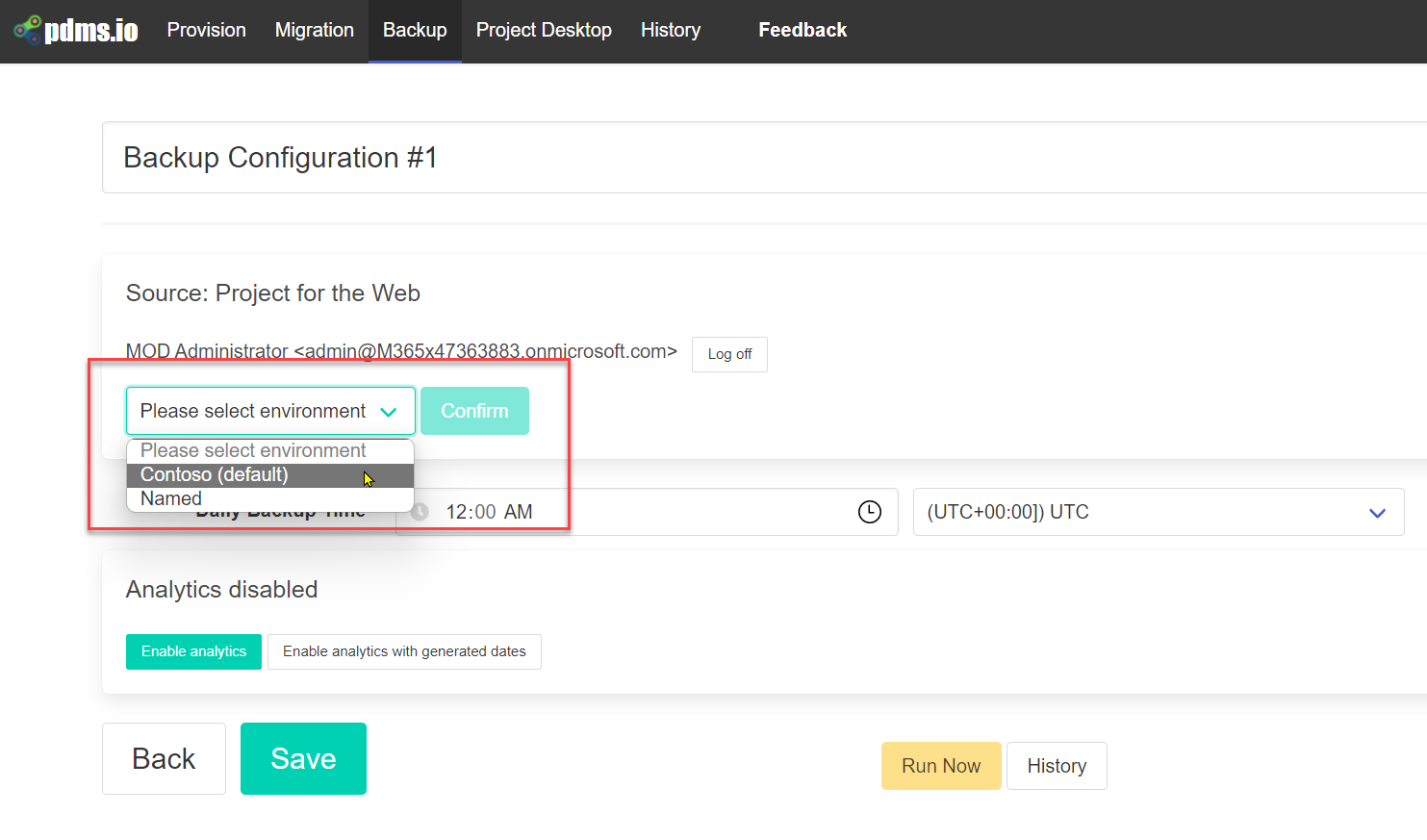
Archive Configuration Setup
In a few seconds, checkbox tiles will appear on the page to select the desired tables for the archive. You also need to set the current time and time zone.
Then you need to click "Save" to start the process of copying and saving the current Project for the Web environment data.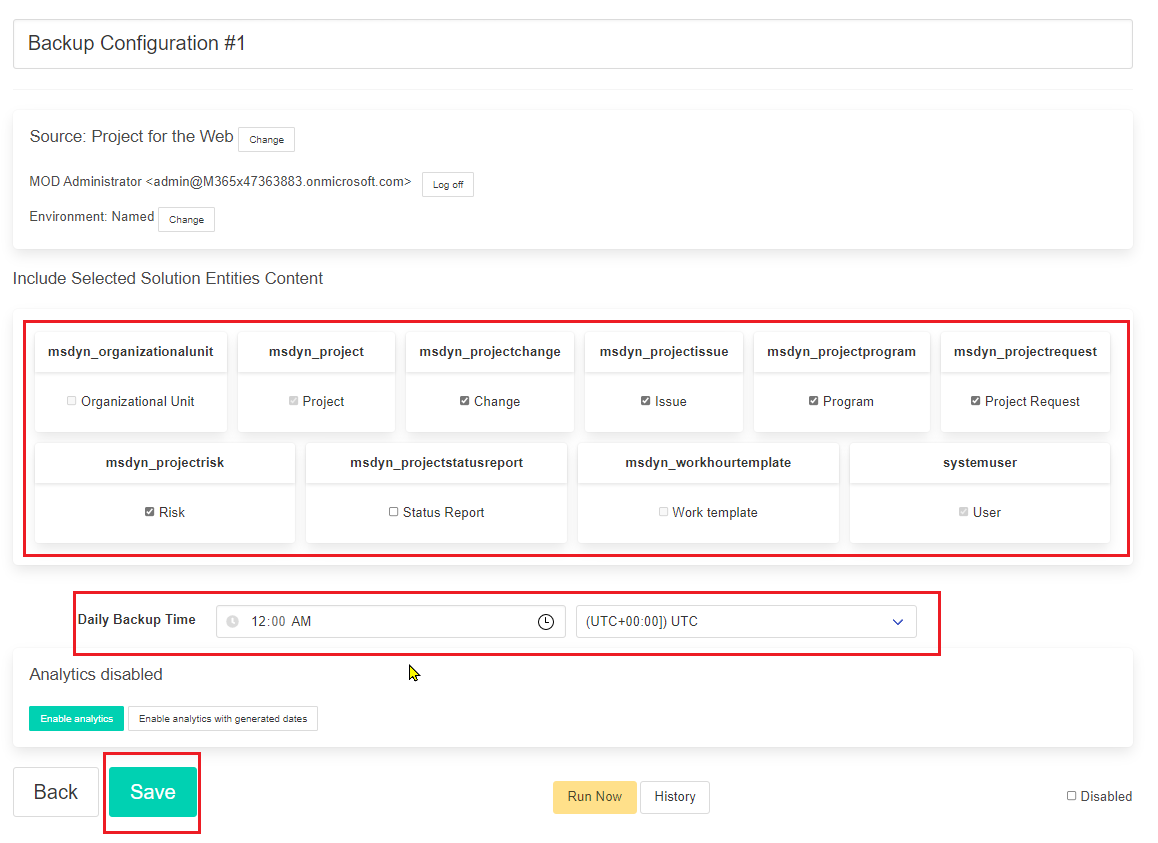
As a result, the configured archive configuration appears on the Backup Configurations page.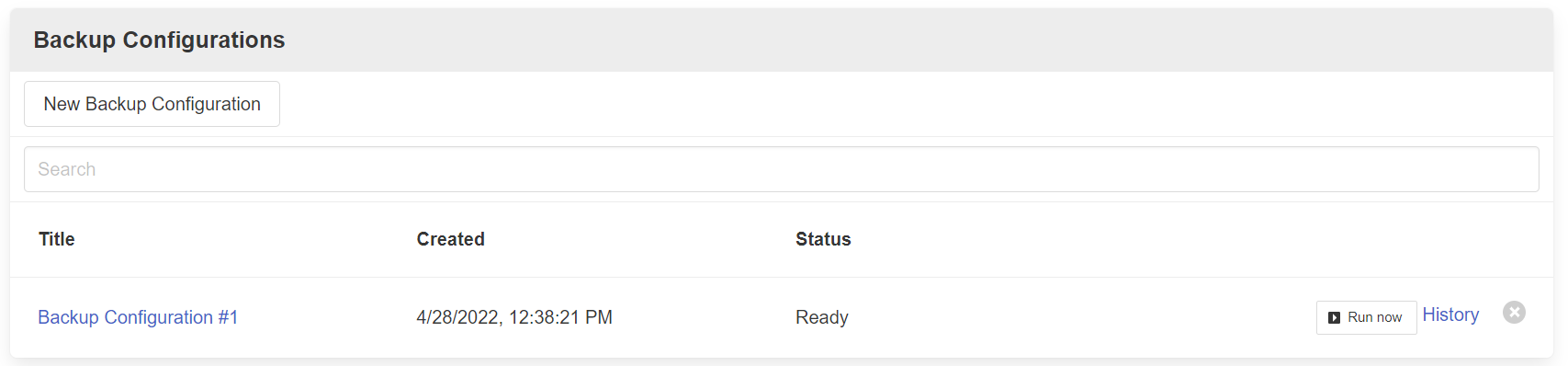
On the "Backup Configurations" page on the right, you can click the "Run Now" button to restart the process of copying data and save the new version of the archive. 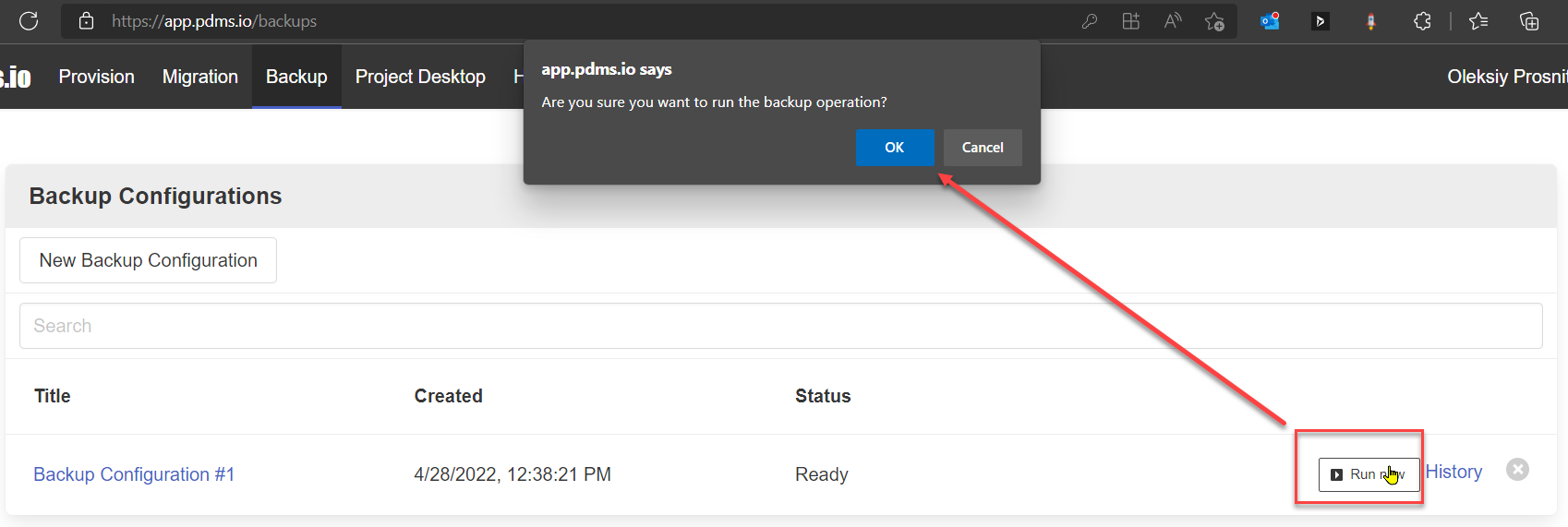
The running process displays a list of projects and related entities with data copied to the created archive, as well as the status for each item. 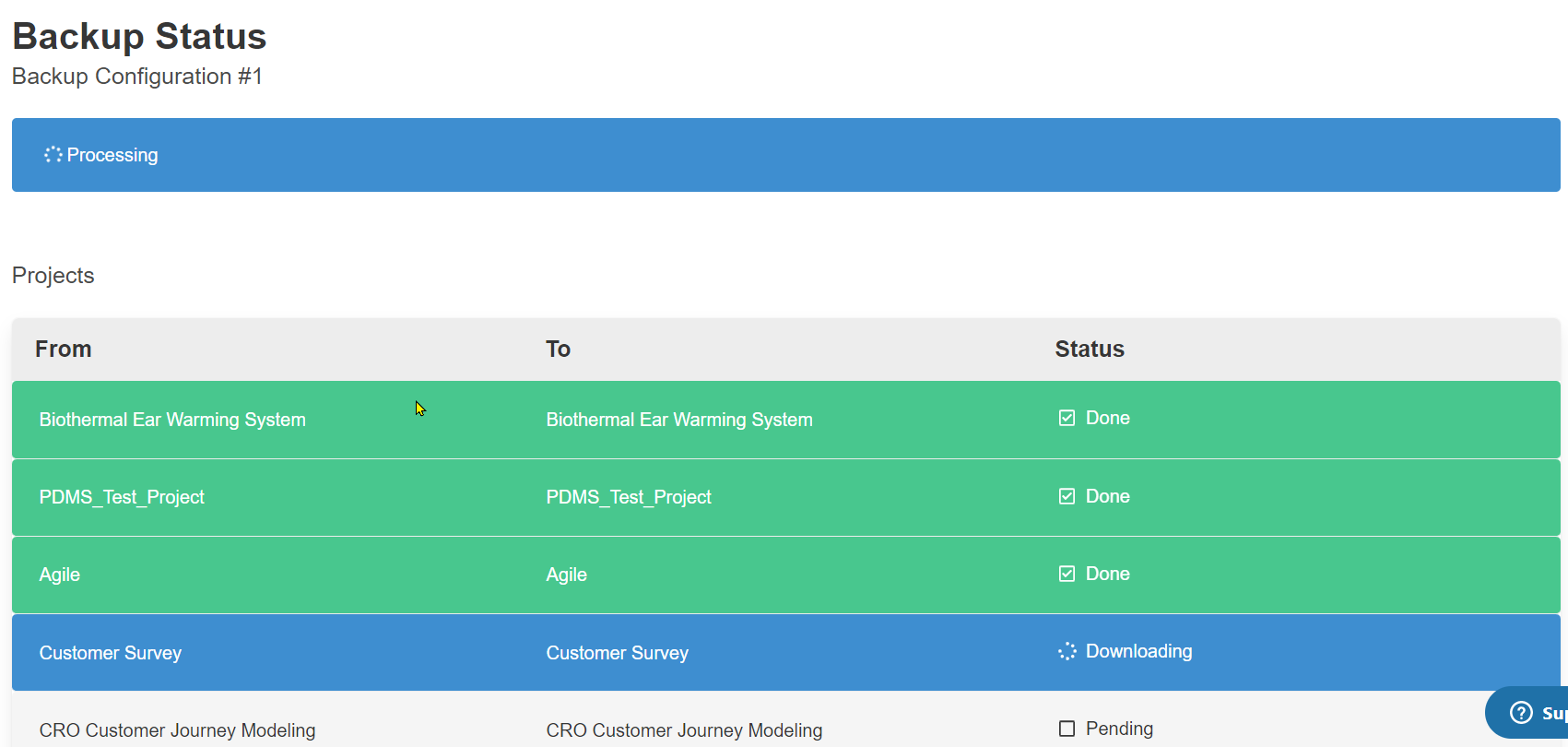
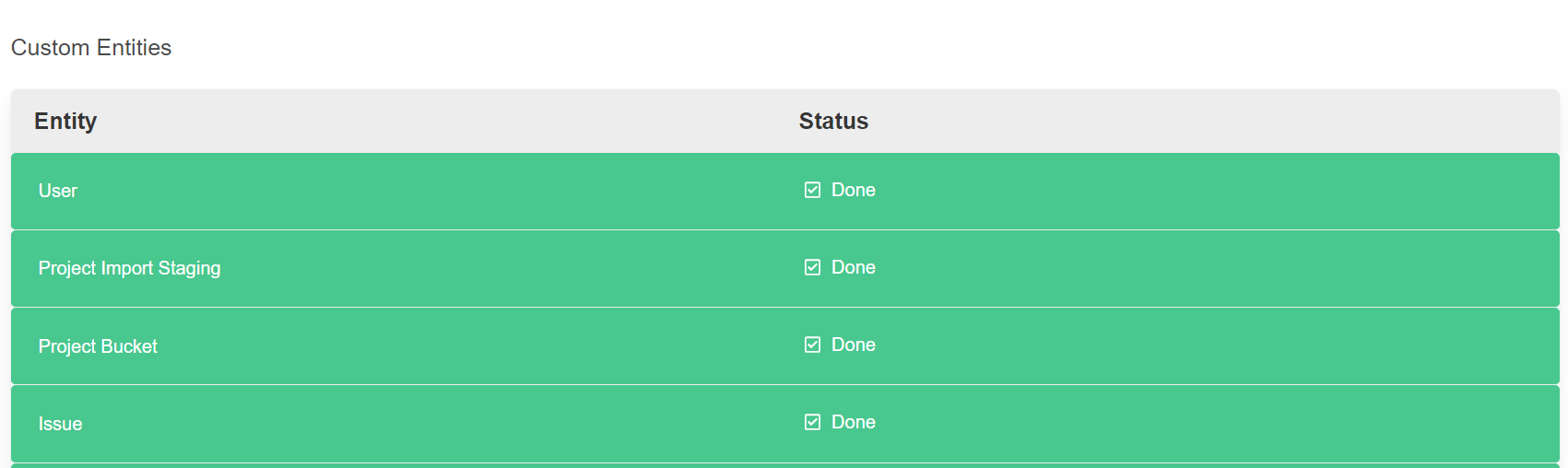
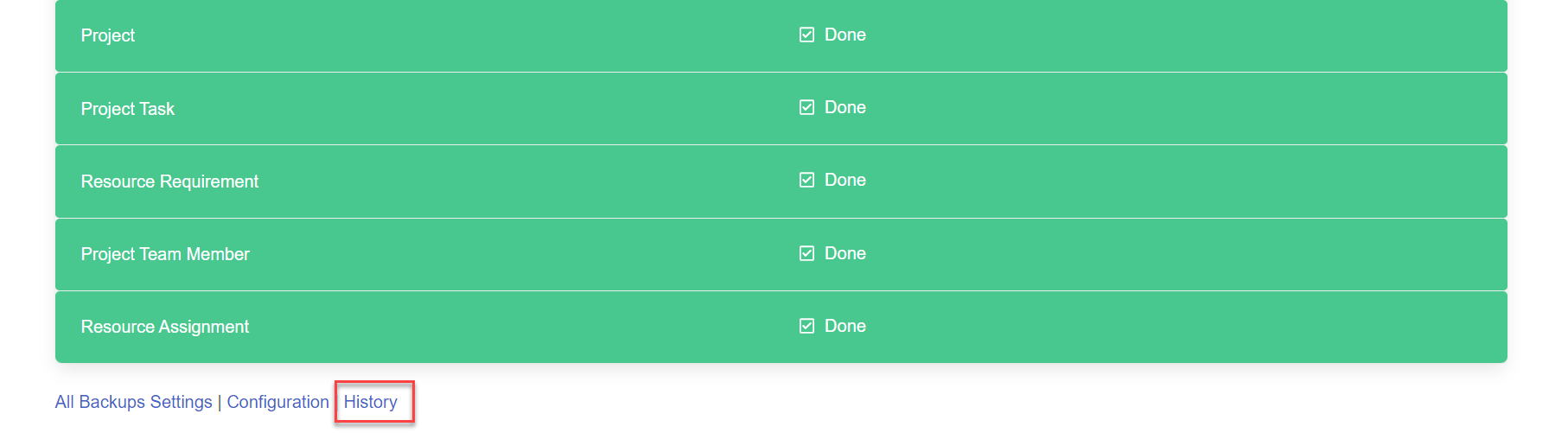
If you need to see the history of executed backup and archived data, click on the History link
Any saved version can be used later to restore saved project data to the Project for the Web environment.
