Purpose of the PDS PMO Accelerator solution
With the PDS PMO Accelerator solution you will get the following important activities in your tenant environment:
- Automatically install PMO Accelerator in the Power Apps environment.
- Upload a set of demo projects.
- Uploading a Power BI report for PMO Accelerator projects and automatically embedding it to the page in the application in Power Apps.
- Create and activate Power Automate workflows for PMO Accelerator.
You can read more about the Project for the Web Accelerator solution on the Microsoft website: https://docs.microsoft.com/en-us/project-for-the-web/enhance-project-for-the-web-projects-use-accelerator
Prerequisites
The following conditions are required to successfully install the PDS PMO Accelerator solution in the Power Platform user environment and further test:
- Administrative rights to access tenant settings (to create an environment and deploy a solution, the user must have at least the role of Power Platform Administrator or global administrator. If you are not a global administrator in your organization, you can request access and role assignment from the IT department)
- Subscription to the tenant for licensing plans: Plan 3 or Plan 5 for deployment, Power BI Pro for reports access.
- Assigning licenses to users of the Project Accelerator application.
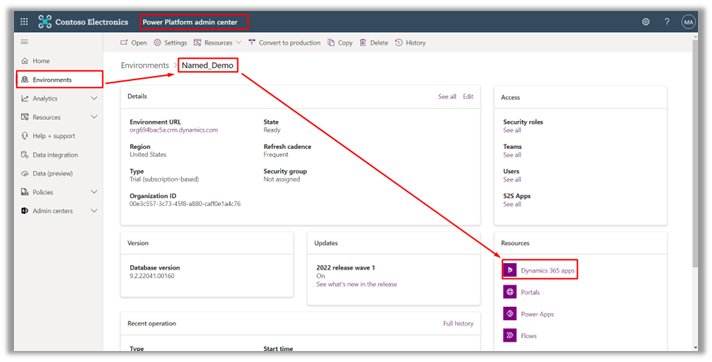
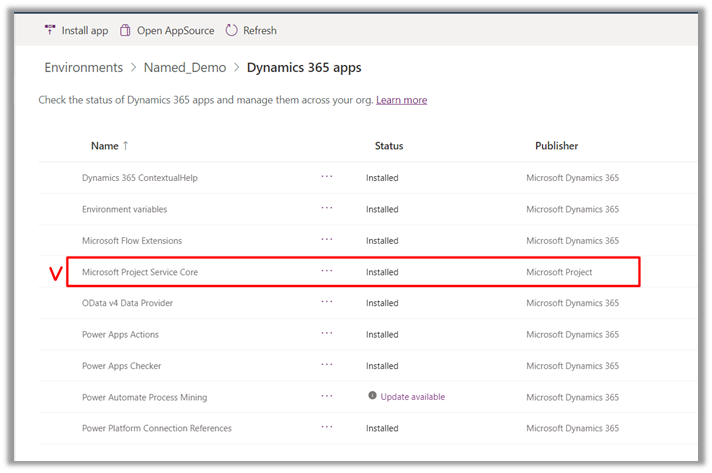
- Power Platform environment with active Dataverse database and Project Service Core application installed.
Authorization On The PDS Site
To get and use active applications, you need to follow the link Home - Project Data Suite (https://projectdata.io/) (https://app.pdms.io/) and click on either «Login» or «Sign up», depending on whether you have an account already created or not.
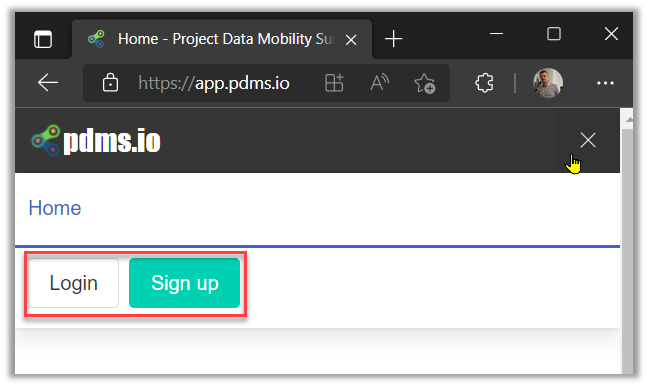
If you do not have access, you need to click the "Sign up" button and select which account you want to access.
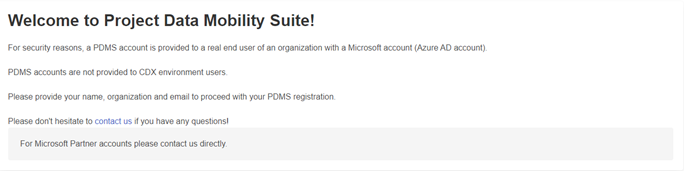
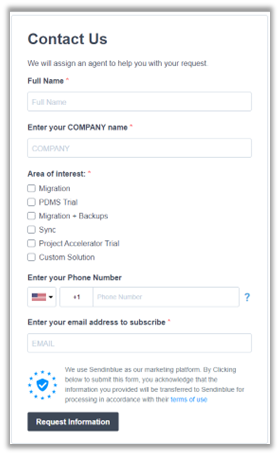
After access is requested, you will receive an email granting access.
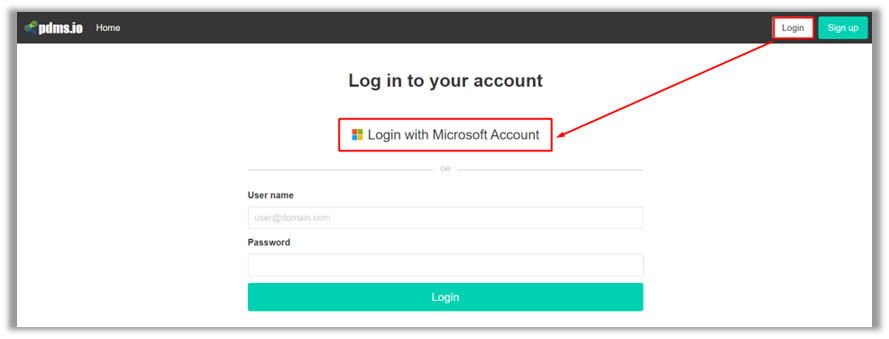
If you already have access, you should click the "Login" button and then click in the new window "Login with Microsoft Account" and log in using the account that was granted access.
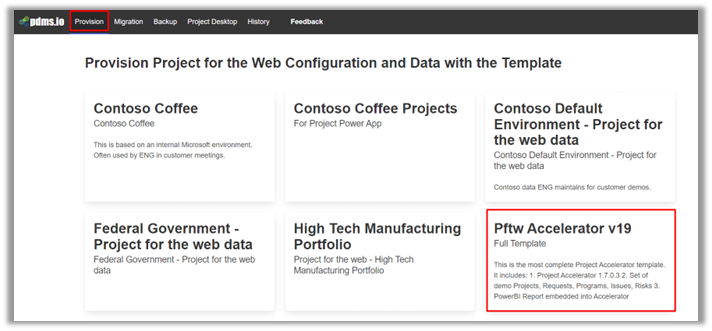
Selecting the PDS Project Accelerator template to install
After successful authorisation, on the main page of the site PDS Home - Project Data Suite (https://projectdata.io/) (https://app.pdms.io/) you need to select the following PMO Accelerator template for installation.
Authentication and selection of the Dataverse environment
Next, you need to select the Login & Password authentication method (multi-factor authentication is not supported), specify the login and password of the administrator of the Dataverse environment of your tenant and click Login.
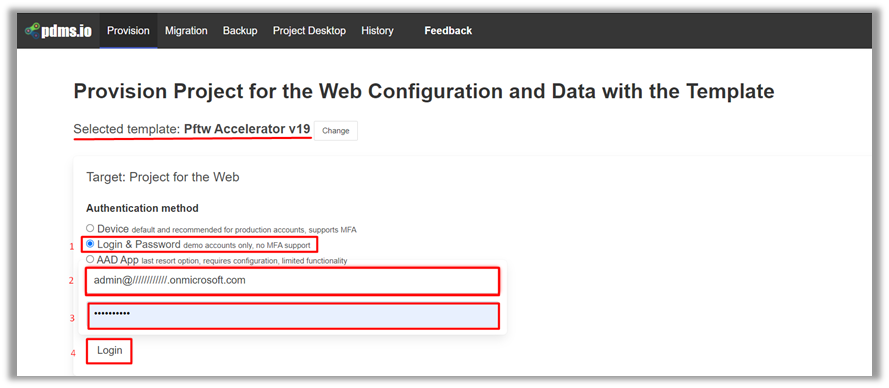
As soon as a successful authorisation process takes place, you will automatically be redirected to the page, where you will be able to select the environment for installing the template of the PMO Accelerator solution.
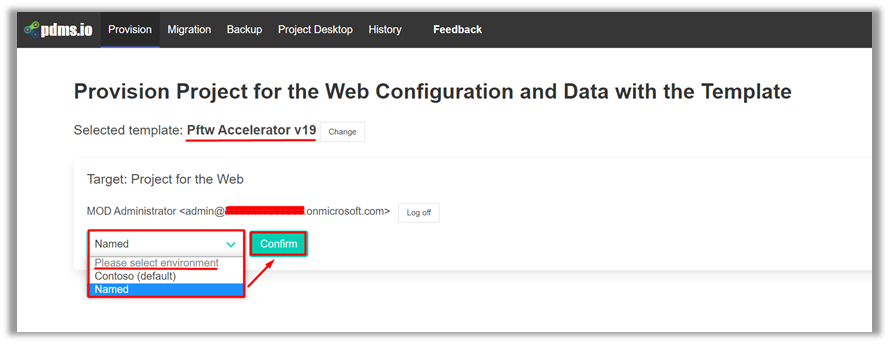
Installing the PDS PMO Accelerator solution
At this step, the Administrator needs to begin the installation process.
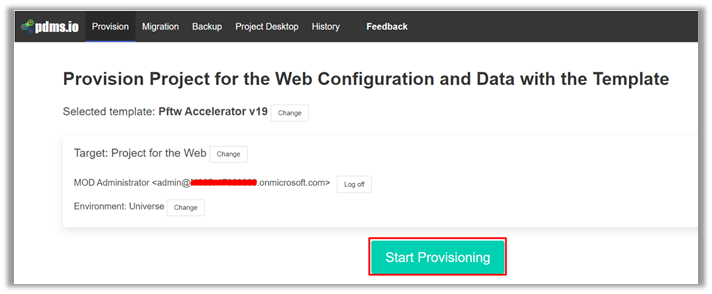
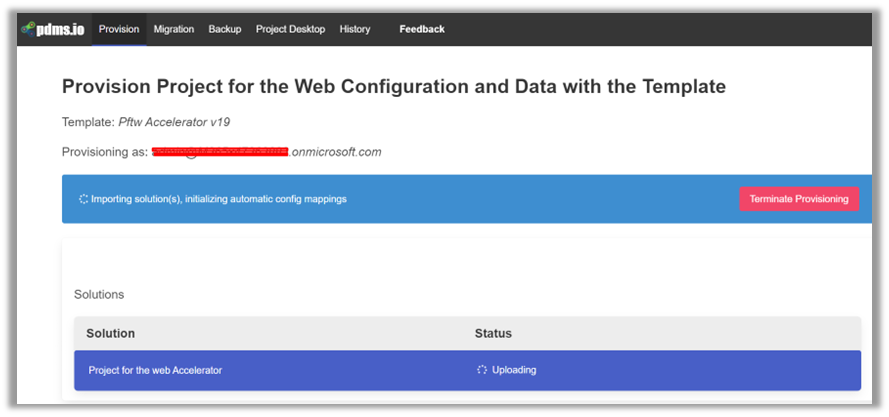
WARNING! If after a while the process stops with a similar warning:
- This message means is “Administrator, who is responsible for deployment has no Plan 3 or Plan 5 assigned licenses.
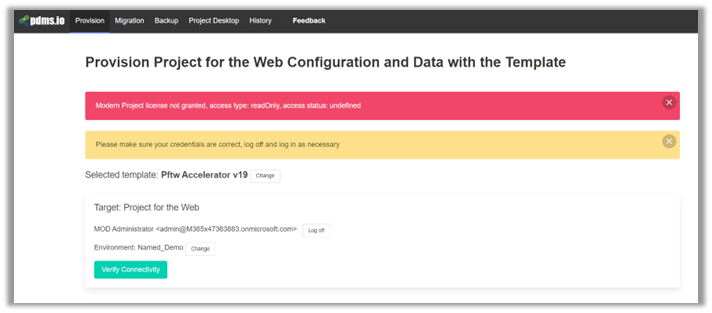
- The message means is “The ProjectServiceCore app is not installed in the selected environment”
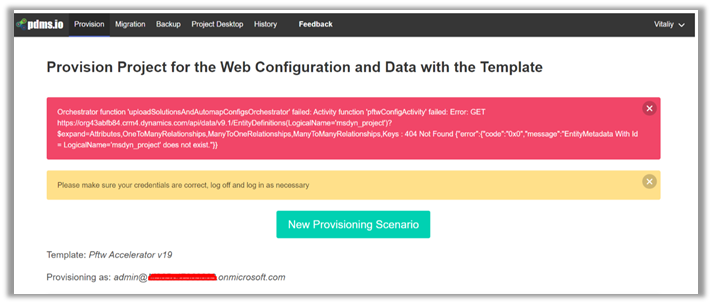
In this case, you need to check the Preliminary Conditions For Use.
The installation process can take from 15 to 40 minutes. The sign of completion will be the green colour of the format of the lines of imported objects: Solution, Projects, Entity, Power BI Reports, and the status Done.
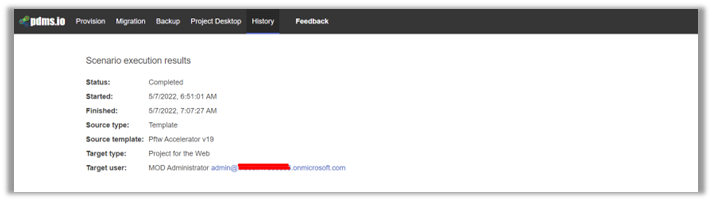
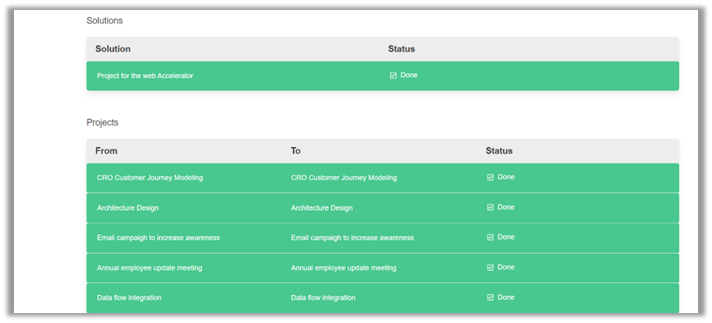
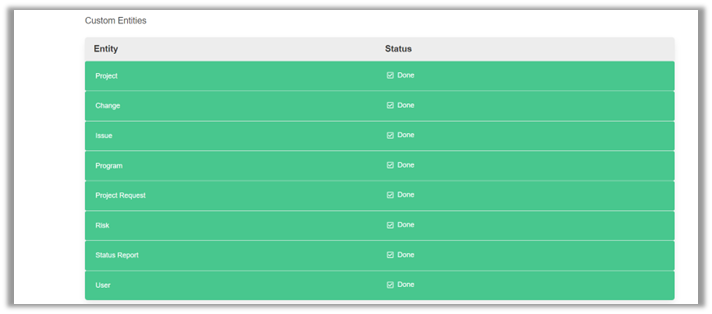

Now you can open Power Apps, select the appropriate environment and open the Projects program on the Apps page, which appeared after the installation of the PDS PMO Accelerator solution.
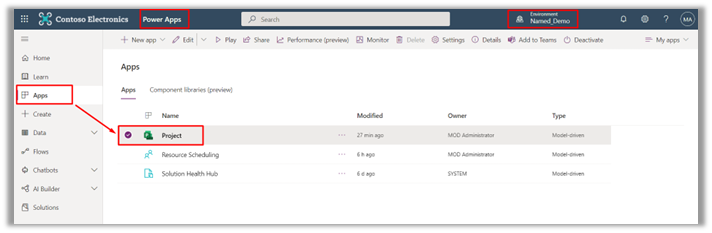
General overview of the active PDS PMO Accelerator application
Home
The expanded Project home page contains a dashboard with summary charts of Project for the Web demo projects imported from Microsoft "Gold Tenant".
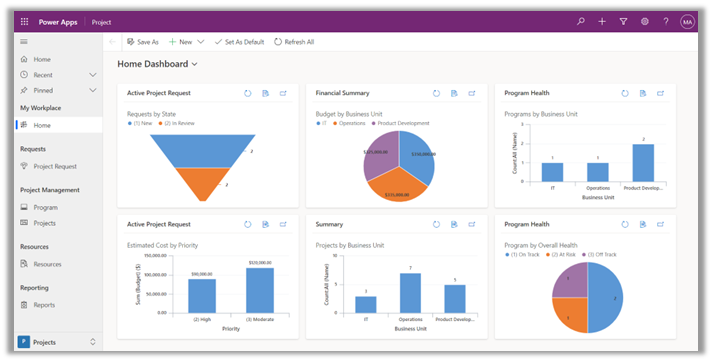
Requests
The Project Accelerator uses a project request table that your teams can use to propose new projects, and a Power Automate flow to create a project when a project request is approved.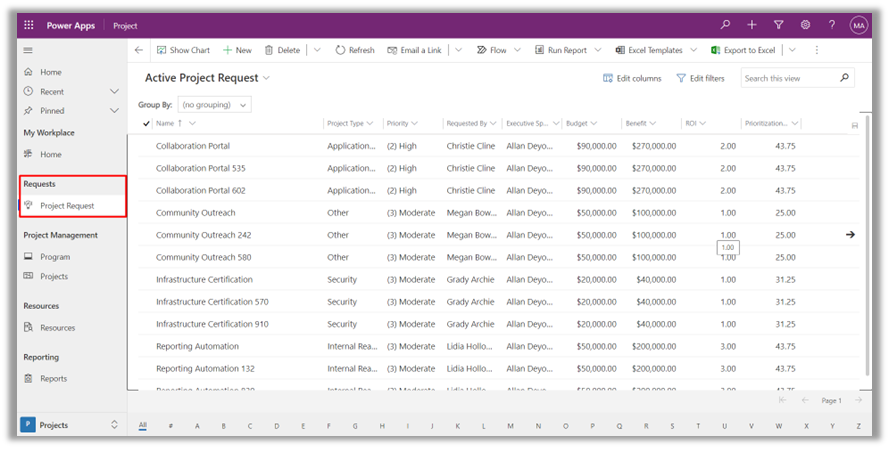
Programs
The Project Accelerator uses a Program table that allows you to consolidate related projects into a program. This way, you can create a hierarchy for your organisation to view currently related projects without opening each project to view details. You can then prioritise project efforts based on things like expected financial returns and current status.
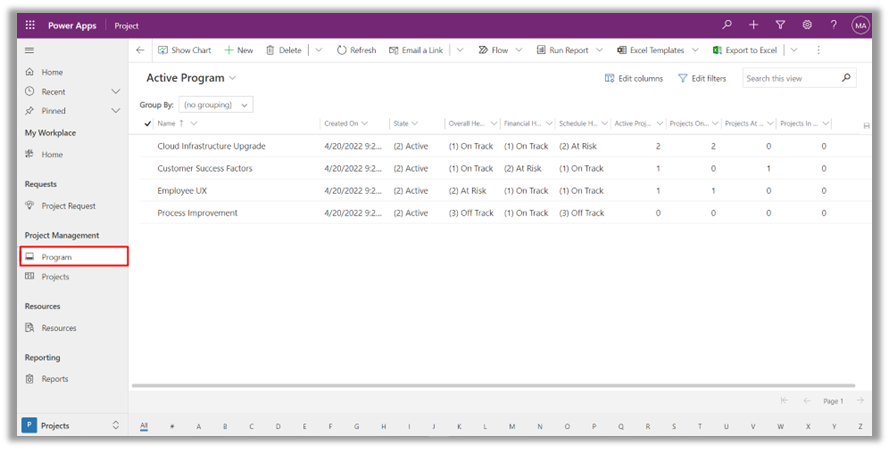
Projects
The Projects view displays a list and highlights of demo projects created. 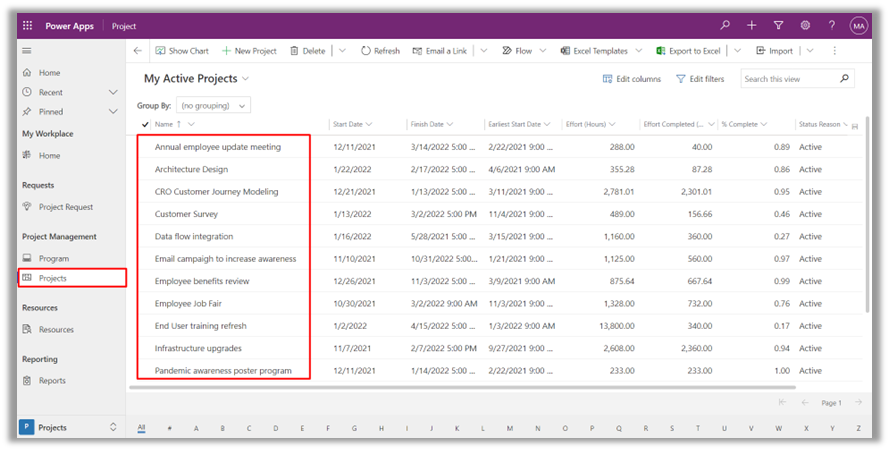
Reports
The Reports page has inserted a template for Power BI interactive reports connected to a database of published demo projects.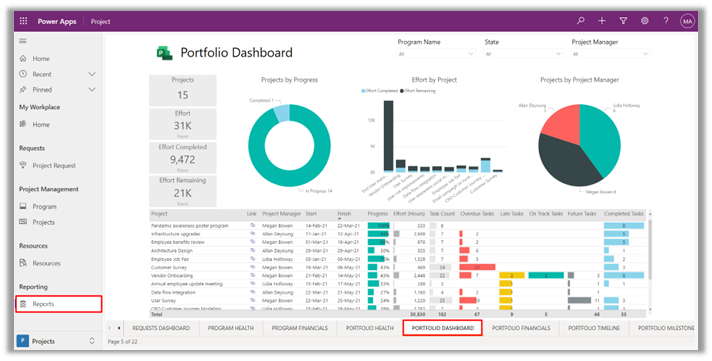
To set up automatic updating of report data, you need to log in to Power BI Service, select the PMO Accelerator workspace, confirm credentials to the Dataverse database, and enable automatic updating as scheduled.
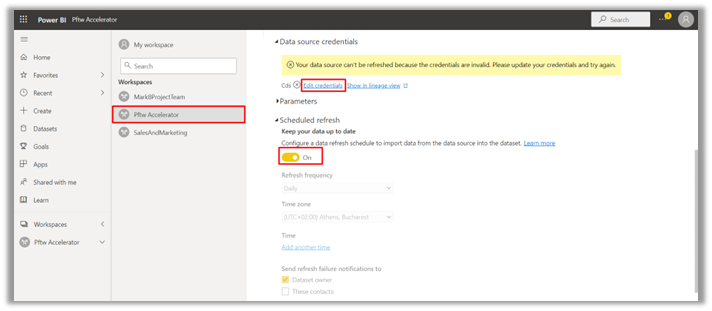
In cases, if the other users need the possibility to view reports in the PDS Project Accelerator application, they need to be assigned Power BI Pro licenses and include them in the PMO Accelerator workspace with the Viewer role.
You can read more about the Project for the Web Accelerator application on the Microsoft page https://docs.microsoft.com/en-us/project-for-the-web/enhance-project-for-the-web-projects-use-accelerator